
CHARACTER
Give a portrait a little personality
Start with your own image and describe a smile, a gesture or a gentle turn. Name the face, outfit and setting you want to preserve in the shot.
Start with your image. Decide what happens next.
HOW TO USE THE STUDIO
Your picture sets the scene. A focused motion prompt tells the model what happens next.
Upload a JPG, PNG or WebP up to 10 MB, or choose Animate on a saved image. Add an optional end frame with Seedance, Wan 3.0 or Wan 2.2 Spicy Frames.
Describe a gesture, expression or camera move. Name the face, outfit and setting to preserve, then set duration, frame shape and audio.
Review the credit quote and choose Generate. Your task appears in My creations; open the finished clip to watch, download or reuse the prompt.
WHY CHOOSE US
Keep the image as your creative anchor while you direct the action. Make a portrait feel alive, plan a transition or give a scene its own sound.
Start with your own image and describe a smile, a gesture or a gentle turn. Name the face, outfit and setting you want to preserve in the shot.
Add a start and end image with Seedance, Wan 3.0 or Wan 2.2 Spicy Frames. Describe how the subject should move from one pose to the next.
Use the audio option with Seedance, Wan 3.0, Wan 2.7 Spicy Audio or Vidu. Include the ambience you have in mind in the motion prompt.
Explore Wan, Seedance and Vidu from the same image-to-video workspace.
See the credit quote change with your model, duration, resolution and audio settings.
Watch and download saved results from My creations or revisit them in the Library.
THE MOTION LAB
Upload a start image or choose one from My creations. Describe the subject's action, camera movement and what should stay consistent.
A slow, steady camera push-in toward the subject. Subtle natural motion, consistent lighting. Preserve the subject, clothing and composition of the reference.
Add your image, then make the movement your own.A gesture, a change in expression or a gentle camera move can give a scene its character.
A CLEAR START. AN OPTIONAL END.
Start with a portrait. Finish on a smile, a gesture or a new pose. Add both images to guide the transition, then describe the movement between them.
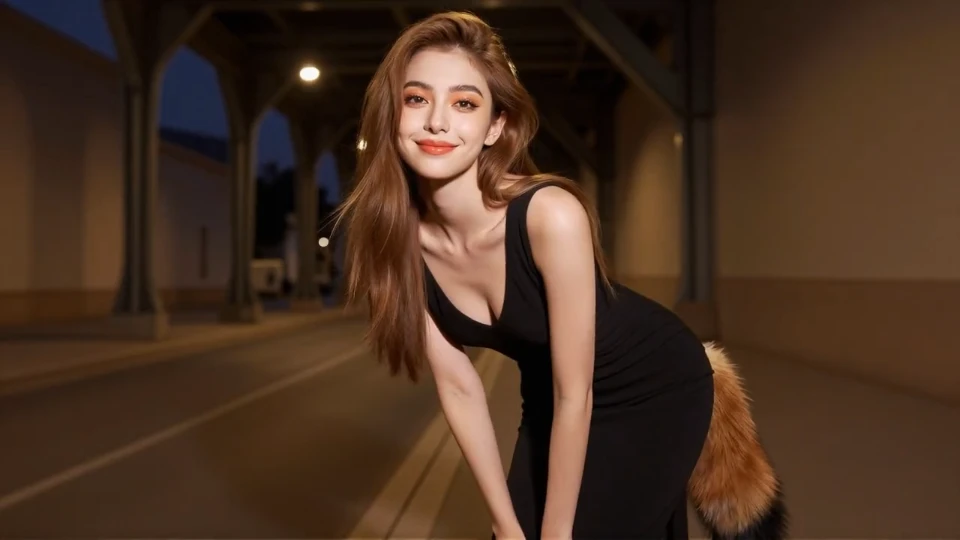
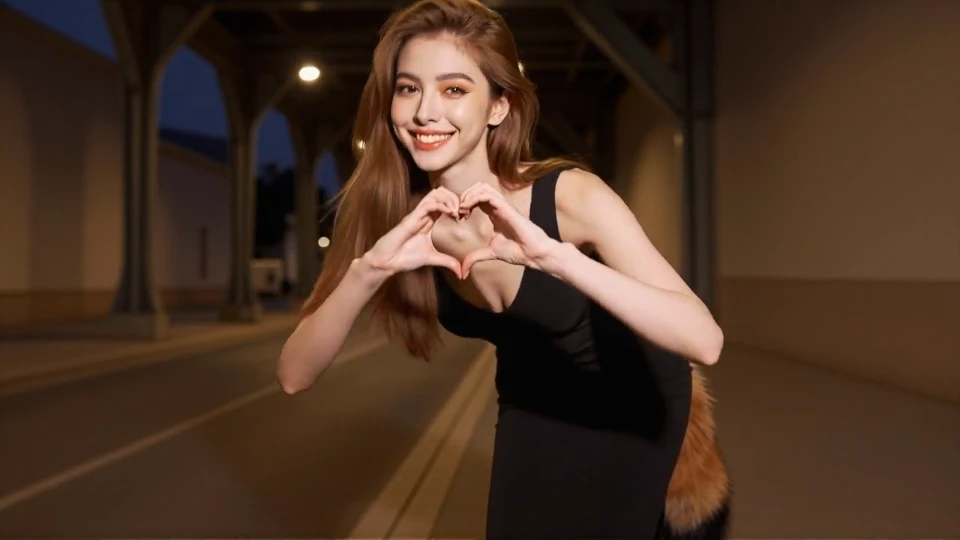
Frame inspiration from one clip · Seedance, Wan 3.0 and Wan 2.2 Spicy Frames support two-frame inputs.
CHOOSE WHAT MATTERS
Choose by the shot you want to make: a moving portrait, a planned transition or a scene with sound. Adjust the settings and see the credit quote before generating.
Explore portrait motion, two-frame transitions and audio across the Wan models.
Direct a 4–15 second shot with start and end frames, camera movement and optional audio.
Start with one image and describe the action. Add audio from the settings panel.
VOICES FROM ACROSS THE STUDIO
A few words from the people
bringing their ideas to life.
I could upload the pictures I wanted to use.
I could turn the ideas I had in mind into results.
The Spicy options were the part I liked most.
Image generation is my favorite. There are so many creative ideas I can try.
It's exciting to see an idea from my imagination turn into an image.
I liked the image-to-image tool too. Working from a picture gave me another way to create.
The videos were the most exciting part for me. I really liked how they turned out.
BEFORE THE FIRST TAKE
Yes. Choose an image-to-video model, upload your picture and describe the movement. You can also open an image you created here and choose Animate. Try a smile, a gentle turn or a slow camera push-in for your first shot.
Seedance, Wan 3.0 and Wan 2.2 Spicy Frames accept a start image plus an optional end image. Use the second frame to guide the final pose or composition. Other Wan and Vidu options start from one image; the upload thumbnails show each frame's role.
Upload JPG, PNG or WebP files up to 10 MB each. Use a clear image and a frame shape close to the video you want. Your reference thumbnail appears in the prompt bar so you can review it before generating.
Your uploaded image anchors the subject and starting composition. Name the details you want to preserve, such as the face, outfit, lighting and background, then describe the movement separately. A clear reference and a focused motion prompt help maintain consistency throughout the shot.
Yes. Seedance, Wan 3.0, Wan 2.7 Spicy Audio and Vidu have an audio option in Settings, enabled by default. Describe the ambience you want in your prompt, or turn audio off for a silent clip. The credit quote updates with your choice.
Explore the Wan Spicy models for portrait motion, frame transitions and audio options. Seedance supports start and end frames with 4–15 second durations, while Vidu starts with a single image. Choose the model around the shot you want to make.
Sign in with an active membership and sufficient credits. Upload your starting image, add the motion prompt and review the settings. The Generate button shows the credit quote before you submit.