
STORY
Find your opening moment
Create a character introduction, a quiet encounter or a scene-setting shot. A clear action gives your short clip a sense of purpose.
Your words. Your world. No starting image needed.
HOW TO USE THE STUDIO
No starting image needed. Describe a moment and turn it into a short scene with Seedance 2.0.
Introduce an adult subject, a setting and one clear action. Describe the atmosphere and lighting to give the shot a visual direction.
Add a camera move to the prompt. Select a duration from 4–15 seconds, choose the frame shape and resolution, and keep audio on or turn it off.
Check the quote and generate. Find the finished clip in My creations, download it or reuse the prompt to explore another setting, camera move or mood.
WHY CHOOSE US
Work with a subject, an action and a mood. Seedance 2.0 gives you a text-first way to explore a short scene without preparing a reference image.
Create a character introduction, a quiet encounter or a scene-setting shot. A clear action gives your short clip a sense of purpose.
Write the framing, movement and light into your prompt. Choose the frame shape and a duration from 4–15 seconds to fit the moment.
Revisit the clip in My creations and reuse its prompt. Change the setting, camera or light to try another direction from the same starting idea.
A written scene is enough to begin. You can create before preparing any images.
Set a duration around your scene, from a quick introduction to a longer moment.
Describe your ambience and use Seedance's audio option, or create a silent clip.
THE DIRECTOR’S DESK
Start with a written scene. Name the subject, one action, lighting and camera movement; no starting image is needed.
A slow tracking shot. A rain-soaked city at night, neon reflected in the street; a lone taxi moves through the reflections. Soft blue-hour light. One continuous shot, natural motion, no cuts.
Set the mood with your words. Your scene starts from a text prompt.
THREE OPENING IDEAS
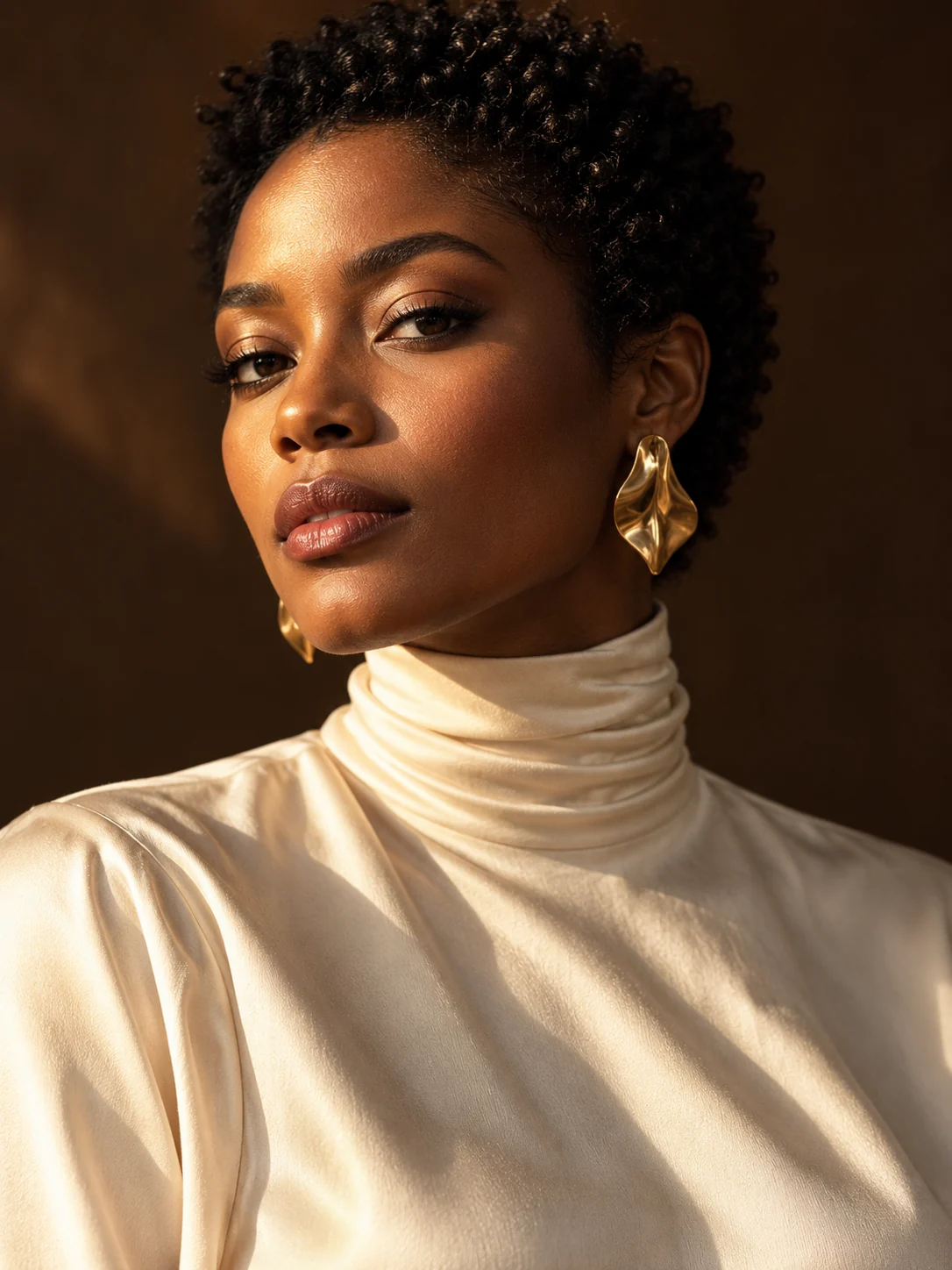
An expression, a moment, a change in the light.
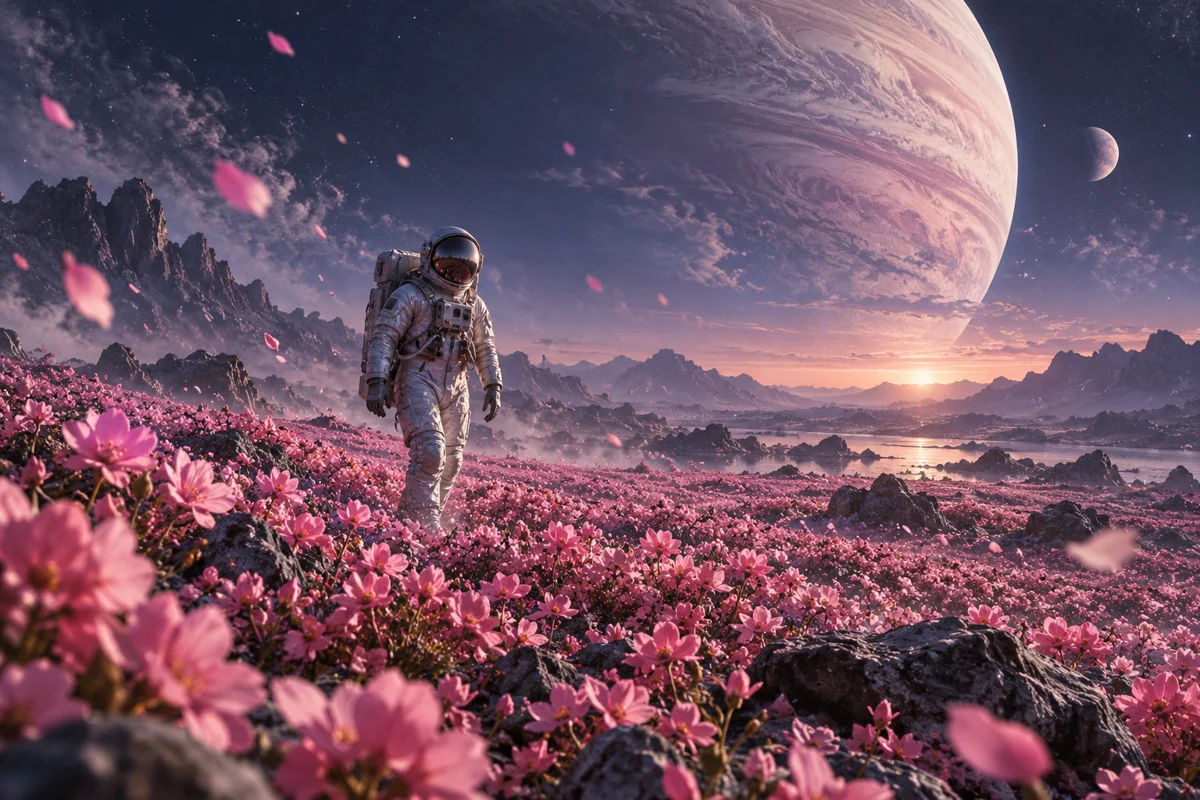
A place that exists only in your imagination.
Light, materials and a little abstraction.
Turn a written scene into a 4–15 second clip with Seedance 2.0. Choose the camera direction, frame shape and sound, then make it yours. Video plans include membership access and credits.
VOICES FROM ACROSS THE STUDIO
A few words from the people
bringing their ideas to life.
I could upload the pictures I wanted to use.
I could turn the ideas I had in mind into results.
The Spicy options were the part I liked most.
Image generation is my favorite. There are so many creative ideas I can try.
It's exciting to see an idea from my imagination turn into an image.
I liked the image-to-image tool too. Working from a picture gave me another way to create.
The videos were the most exciting part for me. I really liked how they turned out.
THE PRODUCTION NOTES
Yes. Select Seedance 2.0 and describe the scene you want. Include a subject, a clear action, the setting and a camera direction. Choose your duration and frame shape, then generate from the text alone.
Text to video builds a scene from your written description. Image to video starts from an uploaded frame. Start with text to explore a new scene, or use an image when you have a specific subject and composition ready.
Seedance 2.0 is available for text-to-video generation. It offers duration, frame shape, resolution and audio settings together in the studio.
Choose a duration from 4 to 15 seconds with Seedance 2.0. Set the length in Settings and review the updated credit quote before generating.
Turn your visual idea into a specific scene: describe an adult subject, the styling, the setting, one action and the light. Use the director's desk above to combine a scene, camera move and atmosphere, then adapt the prompt to your own idea.
Yes. Seedance 2.0 offers audio generation. Describe the atmosphere or sounds in your prompt and keep audio enabled in Settings. You can switch it off when you want a silent clip.
Yes. After submission, continue browsing and return to My creations or the Library to check the task. The studio also shows a notification when a result finishes saving while you have it open.
Yes. Video generation requires an active membership and sufficient credits. Review the current video plans on Pricing; your selected duration, resolution and audio determine the quote shown before Generate.